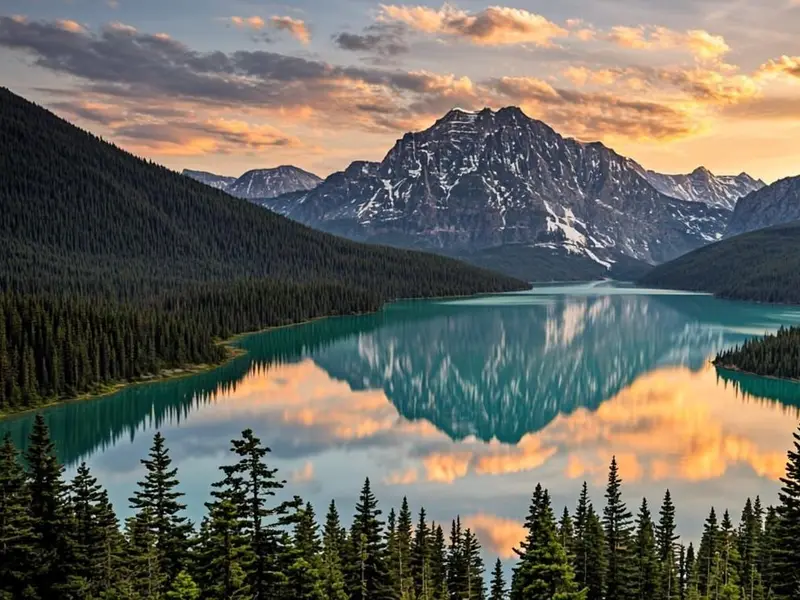
PixelCrop suggests a smart crop based on what is actually in your photo, then hands you precise manual controls to perfect every edge. Everything runs in your browser, so your images are never uploaded — no sign-up, no watermark, no waiting.
Smart suggestions where they help, manual precision where it matters — and every pixel stays on your device.
Smart crop suggestions
PixelCrop analyzes your photo on your device and proposes a crop focused on the region with the most detail and visual energy. Accept the suggestion as-is or fine-tune it with the manual controls until the framing is exactly right.
Precise manual controls
Drag the crop box anywhere in the frame, pull the corner and edge handles to resize it, and zoom up to 400% to work on fine detail. Rotate in 90-degree steps whenever a photo needs a quarter turn.
Aspect ratio presets
Lock the frame to Free, 1:1, 4:3, 3:4, 16:9, 9:16, 3:2 or 2:3 and the proportions stay locked no matter how you adjust. That makes PixelCrop a dependable social media image cropper for posts, stories, avatars and thumbnails.
Export JPG, PNG and WebP
Pick the format and quality that fit the job, from lossless PNG to compact WebP. Exports come out clean and unmarked — no watermark on your images, ever.
Private by design
Cropping happens entirely in your browser, so images never leave your device — there is no upload step at all. Close the tab and every trace of your photo is gone.
Works everywhere
The editor is built mobile-first with touch-friendly drag and resize controls, and it works just as smoothly with a mouse and keyboard. It is a free image cropper with no account and nothing to install.
Simple workflow
Crop an image in four steps
1
Add your image
Drag and drop a JPG, PNG or WebP file, browse for it, or paste it from your clipboard. You can also start with the built-in sample image.
2
Frame the crop
Move and resize the crop box until the framing is right, and zoom up to 400% when you need to work on fine detail.
3
Choose an aspect ratio
Lock a preset such as 1:1 for avatars or 16:9 for video, or stay in Free mode for a fully custom shape.
4
Download instantly
Apply the crop and save the result as PNG, JPEG or WebP. The whole loop takes seconds because nothing is ever uploaded.
Turn one photo into every format a platform asks for: a 1:1 feed post, a 9:16 story and a 16:9 thumbnail from the same source. Locking the aspect ratio keeps each export exactly on spec.
Avatars and profile photos
Square crops with the face properly framed look better than a platform's automatic center-cut. Zoom in until the framing feels right, then export a clean 1:1.
Product photos for shops
Consistent framing across a catalog makes a shop look professional. Crop every product shot to the same aspect ratio so listing grids line up neatly.
Thumbnails and banners
Video thumbnails live or die by framing, and a 16:9 crop with the subject kept in frame survives small preview sizes. Banners get the same treatment with wider, freer framing.
Screenshots and docs
Trim a screenshot down to just the dialog, button or panel you actually want to show. A tight crop makes documentation easier to read and the file smaller.
Print-ready frames
Match standard photo print proportions with 3:2 or 2:3 before sending files to a lab. Because the crop is taken from the full-resolution original, prints stay sharp.
Supported image formats
Load and crop the three formats that cover virtually every photo, screenshot and graphic you will meet.
JPG
image/jpeg
PNG
image/png
WebP
image/webp
Load any of the formats above and export the result in any of them — the input and output do not have to match. A typical workflow: crop a heavy camera JPEG and save it as a compact WebP to trim page weight.
Answers
Frequently asked questions
Is the AI image crop tool really free?
Yes. PixelCrop is completely free — no account, no watermark and no limit on how many images you crop.
Are my images uploaded to a server?
No. Cropping happens locally in your browser using the Canvas API. Your images never leave your device.
Which formats can I crop?
You can load JPG, JPEG, PNG and WebP files, and export the result as PNG, JPEG or WebP.
Does it work on mobile?
Yes. The editor is built mobile-first with touch-friendly controls and works in modern Android and iOS browsers.